How the Web Works: What Really Happens When You Type a URL
A beginner's tour of how the web works — DNS, IP addresses, TCP, HTTPS, HTTP requests and responses, status codes, and the full client-server round trip. The foundation for all of system design, in plain English.

🟢 Fresher-friendly → 🔵 solid foundation
You type gyaanpost.com, press Enter, and a page appears in half a second. It feels instant and magical — but underneath, a beautifully organised relay race just happened across the planet. Understanding that race is the single best foundation for system design, because every architecture you'll ever design is just a fancier version of this same request-and-response dance. So let's slow it right down and watch each runner pass the baton. No prior knowledge needed.
The cast: client and server
A client is any device that requests something — your phone, laptop, or the browser on them. A server is a computer that responds — it's always on, waiting for requests, and it sends back web pages, images, or data. That's the whole relationship: clients ask, servers answer. A single server can answer thousands of clients; that's why one website works for the whole world.
Analogy: a client is a customer phoning a pizza shop; the server is the shop that takes the order and sends the pizza. The customer doesn't need to know how the kitchen works — they just need the phone number and a way to talk.
Step 1: Finding the address (DNS)
Computers don't actually talk using names like gyaanpost.com. They use numeric IP addresses like 93.184.216.34 (or longer ones for IPv6). But nobody wants to memorise numbers, so we have DNS — the Domain Name System, the internet's phone book. It turns a human name into a machine number.
When you hit Enter, your browser asks a DNS server: "what's the IP for gyaanpost.com?" The DNS server replies with the number, and now your browser knows where to send its request. This lookup is cached at several levels (your browser, your OS, your router) so it usually takes only a few milliseconds.
You:  "Where is gyaanpost.com?"
DNS:  "It's at 93.184.216.34."
Step 2: Knocking on the door (TCP + HTTPS)
🔵 Now your browser opens a connection to that IP address using TCP — a set of rules that makes sure data arrives complete and in order (nothing lost, nothing scrambled). Think of TCP as a phone call that both sides agree to start with a quick "can you hear me? — yes, can you hear me? — yes" (the famous three-way handshake).
Because the address starts with https://, one more step happens: a TLS handshake sets up encryption, so nobody in between can read what you send (your passwords, your messages). This is why the padlock appears. The 's' in https literally means "secure."
Step 3: Making the request (HTTP)
With a secure connection open, your browser sends an HTTP request — a plain-text message that says what it wants. The most common type is a GET (fetch me this page). A stripped-down request looks like this:
GET /about HTTP/1.1
Host: gyaanpost.com
Accept: text/html
In English: "Please GET me the /about page, from the host gyaanpost.com, and I'd like HTML back." The main HTTP verbs you'll meet everywhere are GET (read), POST (create), PUT/PATCH (update), and DELETE (remove) — the four things you can do to data. You'll see these again in API design.
Step 4: The server does its work
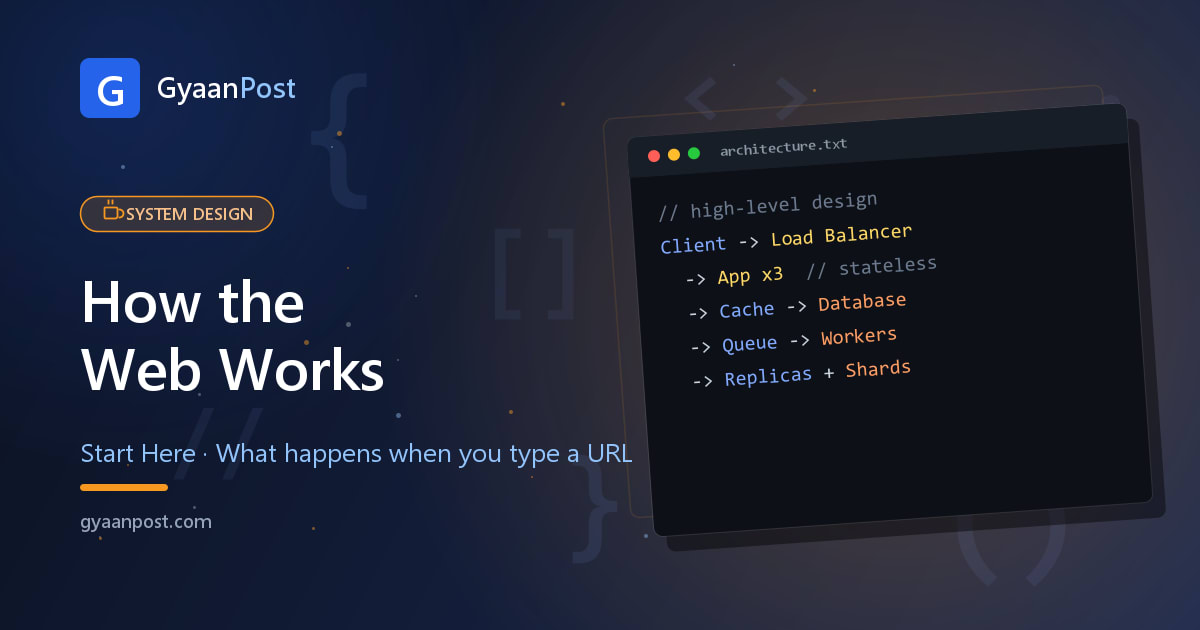
The server receives the request and gets busy. It might run your application code, look things up in a database, check a cache for a fast answer, and assemble a page. This is exactly the part that grows into "system design" — the more users, the more machinery sits behind this step (load balancers, caches, replicas). For now, just picture the kitchen cooking your order.
Step 5: The response comes back
The server sends back an HTTP response: a status code, some headers, and the content (the HTML of the page). That status code is the server's one-word mood:
| Code | Means | Plain English |
|---|---|---|
| 200 | OK | "Here's your page." |
| 301 | Moved | "That's now at a new URL — go here." |
| 404 | Not Found | "No such page here." |
| 500 | Server Error | "Something broke on our side." |
Roughly: 2xx = success, 3xx = redirect, 4xx = you (the client) made a bad request, 5xx = the server messed up. Knowing this split alone makes debugging any web app far less mysterious.
Step 6: The browser paints the page
Your browser reads the returned HTML and starts drawing. It notices it also needs a stylesheet (CSS), some images, and maybe JavaScript — so it fires off more requests for each. Static files like images often come from a CDN (a network of servers near you) so they load fast wherever you are. Once everything arrives, the page is fully painted, and the whole trip — often across oceans — finishes in well under a second.
The whole journey on one diagram
Every box after the load balancer is what "system design" fills in. Right now there's one server; when millions of clients show up, we add more servers, caches, and databases — and the exact way we do that is the whole story of scaling from zero to millions.
Why this matters for system design
🔵 Here's the payoff. Almost every design concept is just an optimisation of one step above:
- Load balancing improves Step 4 — spread requests over many servers.
- Caching and CDNs shortcut Steps 4–6 — answer without doing full work, and from nearby.
- Databases, replicas, sharding are all about how the server stores and finds your data quickly.
- APIs are just well-defined HTTP requests between machines instead of a browser.
So you're not learning a dozen unrelated topics — you're learning better ways to run this one round trip at massive scale. Keep this picture in your head and every later article will click into place.
What to read next
- Client, Server, Database & API — the four words, clearly explained
- Latency, Throughput & Availability — how we measure "fast" and "reliable"
- Scaling from Zero to Millions — the growth story
- ← The complete System Design guide (hub)
Frequently Asked Questions
What happens when you type a URL and press Enter?
Your browser looks up the site's IP address via DNS, opens a secure TCP/HTTPS connection, sends an HTTP request, the server runs code and queries its database or cache, then returns an HTTP response with a status code and HTML, which the browser paints into a page.
What is the difference between a client and a server?
A client (your browser or phone) requests things; a server is an always-on computer that responds. Clients ask, servers answer. One server can serve thousands of clients, which is why one website works for the whole world.
What does the 's' in HTTPS mean?
Secure. HTTPS adds a TLS handshake that encrypts everything between your browser and the server, so passwords and messages cannot be read by anyone in between. That is what the padlock icon represents.